




Detecting macOS Malware with Network Monitoring and Behavioral Analysis
Key Takeaways Traditional macOS security features like Gatekeeper and XProtect often miss sophisticated, behavioral malware that evades signature-based detection. The evolving threat landscape on...

Key Takeaways
- Traditional macOS security features like Gatekeeper and XProtect often miss sophisticated, behavioral malware that evades signature-based detection.
- The evolving threat landscape on macOS includes supply chain attacks, compromised updates, and malicious browser extensions that leverage legitimate processes to communicate with command-and-control servers.
- Real-time network monitoring provides crucial visibility into application outbound connections, allowing users to identify unexpected network activity and potential malware “check-ins” that static firewalls miss.
- Tools like FireWally offer a lightweight, interactive solution for macOS users to monitor and control application network access, enhancing security without requiring extensive technical expertise.
The Evolving macOS Threat Landscape
While macOS maintains a strong reputation for security, and features like Gatekeeper, XProtect, and notarization provide robust baseline protection, the nature of cyber threats has fundamentally shifted. Many users operate under the assumption that avoiding illicit software downloads guarantees safety. However, this perspective overlooks the increasingly subtle and sophisticated tactics employed by modern attackers.
Table Of Content
- Key Takeaways
- The Evolving macOS Threat Landscape
- Understanding Suspicious Application Behavior
- Unexpected Connections from Unlikely Applications
- How Malware Establishes Command and Control
- Connections to High-Risk or Unexpected Jurisdictions
- Limitations of macOS Built-in Security
- The macOS Firewall
- The Imperative for Interactivity
- Solution: Real-Time Monitoring with FireWally
- What FireWally Reveals
- Blocking Untrusted Connections
- Best Practices for Network Hygiene
- Minimize the Attack Surface
- Adhere to the Principle of Least Privilege
- Conduct Periodic Audits
- What You Should Do
In recent years, adversaries have moved beyond easily identifiable malware. Instead, they favor vectors such as supply chain compromises, where legitimate software updates are injected with malicious code, or malicious browser extensions. Another common tactic involves hijacking seemingly innocuous helper processes that silently establish external connections, effectively bypassing traditional, signature-based defenses.
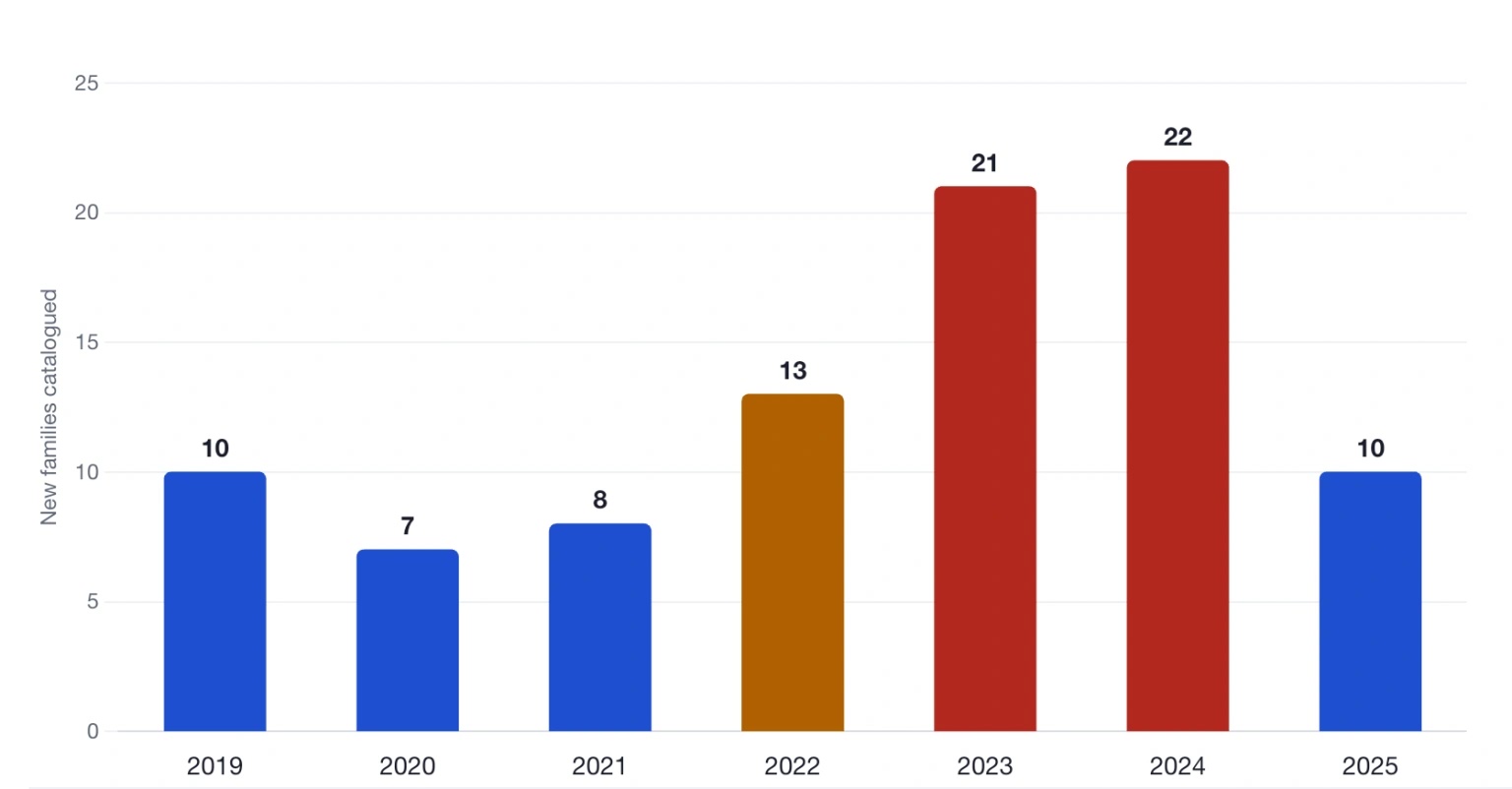
Source: objective-See, The Mac Malware annual recaps by Patrick Wardle (2019–2025)
The core challenge lies in the limitations of conventional antivirus solutions, which primarily rely on identifying known signatures. A zero-day exploit, a newly compromised software update, or a hijacked process will not match any entry in a signature database, allowing it to operate undetected. This also applies to command-and-control (C2) traffic originating from a seemingly legitimate application that has been backdoored upstream. In such scenarios, the malicious activity isn’t within the executable file itself, but rather in the network connections it initiates once running.
Therefore, enhanced visibility into network activity emerges as the most effective defense. By monitoring which applications are communicating with the internet and the destinations of their data in real time, users can detect anomalies that automated tools frequently miss. For instance, a calculator application attempting to connect to a server in an unexpected country would not trigger a signature alert, but it represents a clear red flag to an attentive user.
Understanding Suspicious Application Behavior
Before deploying monitoring tools, it’s essential to recognize the common patterns of suspicious network behavior. These patterns, once understood, become readily identifiable.
Unexpected Connections from Unlikely Applications
Certain applications should have no reason to access the internet. A standalone image editor that processes files locally, or a basic calculator, typically does not require network connectivity. Even applications with legitimate network needs usually communicate with a limited set of known endpoints, such as their official update servers, analytics providers, or license verification services.
An immediate red flag appears when an unexpected application initiates outbound connections, or when a known application contacts hosts unrelated to its intended function. Detecting such deviations requires establishing a baseline of normal behavior and using a tool that highlights these anomalies as they occur.
How Malware Establishes Command and Control
Modern malware rarely operates in isolation. Upon infecting a system, it typically attempts to contact a command-and-control (C2) server. This communication serves to register the compromised machine, retrieve further instructions, and exfiltrate data. This consistent pattern makes network telemetry a highly reliable method for detecting compromises, even when the malware binary itself is unknown.
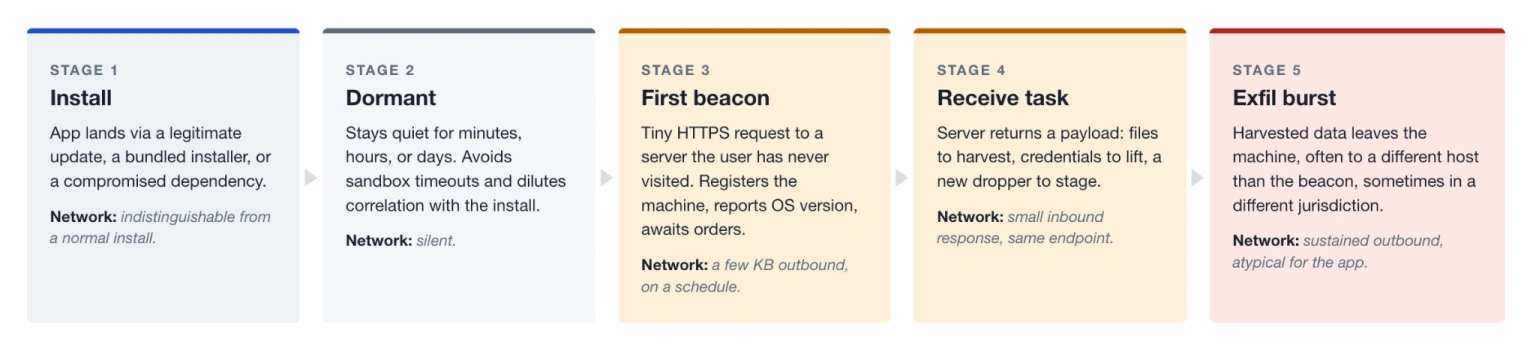
Source: Generalised pattern drawn from public incident write-ups by Objective-See, Mandiant M-Trends, and Jamf Threat Labs
These “check-in” attempts often appear innocuous initially—a small HTTPS request to an unfamiliar domain, repeated at regular intervals. The subsequent payload can vary widely, from instructions to harvest specific files, to deploying additional malware, or exfiltrating credentials from the macOS Keychain. None of this activity is discernible without direct observation of the network connections themselves.
Connections to High-Risk or Unexpected Jurisdictions
While geographical location isn’t a definitive indicator of malicious activity, it serves as a valuable contextual clue. A legitimate backup application connecting exclusively to its vendor’s operational region is normal. However, if the same application suddenly initiates a connection to an IP address block in a country with no documented ties to the vendor, it warrants immediate investigation.
Monitoring tools that display the country or autonomous system associated with each connection provide critical context for triaging these events. Users do not need to be network analysts to recognize that an offline note-taking application communicating with a hosting provider in a sanctioned jurisdiction is highly suspicious.
Limitations of macOS Built-in Security
macOS includes a native firewall, which excels at its designed purpose. However, understanding its specific functions—and its limitations—is crucial for identifying existing visibility gaps.
The macOS Firewall
The integrated firewall, accessible through System Settings, is highly effective at blocking unsolicited incoming connections. It allows users to refuse all inbound traffic, permit only signed software to listen for connections, and activate stealth mode to prevent responses to network probes. These features are particularly beneficial for users frequently connecting from public Wi-Fi networks.
Crucially, the macOS firewall does not offer granular control over outbound traffic. There is no native interface to list all running processes, display their current network connections, or allow users to approve or deny these connections in real time. macOS operates under the assumption that if an application is installed and trusted to execute, its outbound network activity is implicitly permitted.
While this assumption may suffice for many users, it is no longer adequate given the advanced nature of current cyber threats.
The Imperative for Interactivity
Historically, controlling outbound connections on macOS involved configuring static rule sets—extensive configurations specifying which applications could access particular hosts on certain ports, and denying all other traffic. While effective, this approach presupposes prior knowledge of legitimate connections. For newly installed applications, this information is typically unknown, leading to frustrating application breakdowns when rules are incorrectly applied.
Interactive, real-time prompts provide a superior solution. When an application attempts its first network connection, the monitoring tool pauses and prompts the user to either allow or deny it. This decision is then remembered. Over a few days of normal use, a personalized rule set is built based on actual application behavior, eliminating guesswork. This method also provides immediate visibility into every host an application attempts to contact, fulfilling the primary goal of network transparency.
This interactive paradigm was popularized on macOS by tools like Little Snitch and extended to a broader audience by projects such as LuLu and OpenSnitch. A common drawback of these comprehensive firewall solutions is the potential for hundreds of initial prompts, which can be disruptive. For users seeking visibility without the commitment to a full firewall or new traffic management habits, a dedicated monitoring tool offers a lighter alternative.
Solution: Real-Time Monitoring with FireWally
FireWally represents a lightweight, Apple-native network monitoring utility designed for transparency. It is a free application, compatible with macOS 13 or later, and has received Apple’s notarization. Its scope is intentionally focused: rather than functioning as a full enterprise firewall, FireWally prioritizes revealing network activity on your Mac and enabling users to block untrusted applications.
What FireWally Reveals
Upon activation, FireWally identifies and enumerates every application on your Mac actively utilizing network resources. For each application, it displays live traffic data, including transmitted and received data rates. The tool also provides hourly and daily traffic summaries, allowing users to identify processes that have been active overnight, even when not actively observed. Background processes, not explicitly launched by the user but still transferring data, are also prominently displayed alongside actively used applications.
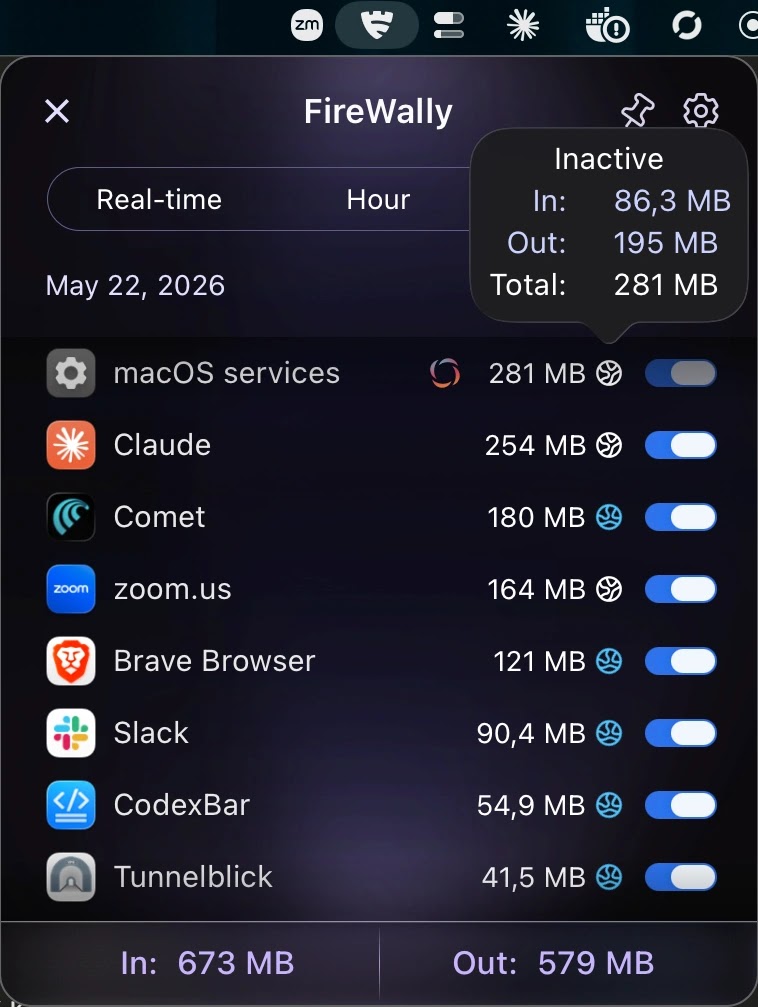
Furthermore, FireWally incorporates Apple Intelligence-powered explanations for why a specific application is connecting. This feature eliminates the need for users to reverse-engineer every domain name, providing immediate context to determine the plausibility of a connection. For trusted applications, this context confirms normal behavior; for unrecognized applications, it often provides sufficient information to determine that the connection is unwarranted.
Blocking Untrusted Connections
Beyond observation, FireWally offers a per-application toggle to completely disable internet access. If an application is observed making unwanted connections, a single click can block it permanently. Given its Apple-native and lightweight design, FireWally can remain running continuously without the significant overhead associated with a full firewall stack.
This combination of live visibility, traffic history, and one-click blocking makes interactive monitoring practical for users who are not network administrators. It provides an immediate answer to “what is this Mac actually doing right now” without requiring additional infrastructure.
Best Practices for Network Hygiene
The effectiveness of any monitoring tool is amplified by consistent security practices. Adopting a few simple habits can significantly reduce your attack surface and ensure alerts remain meaningful.
Minimize the Attack Surface
Every installed application represents a potential entry point for attackers. Regularly review your installed software and uninstall anything no longer in use. Special attention should be given to helper processes, browser extensions, menu bar utilities, and login items, as these are frequently targeted due to users often overlooking them in security audits.
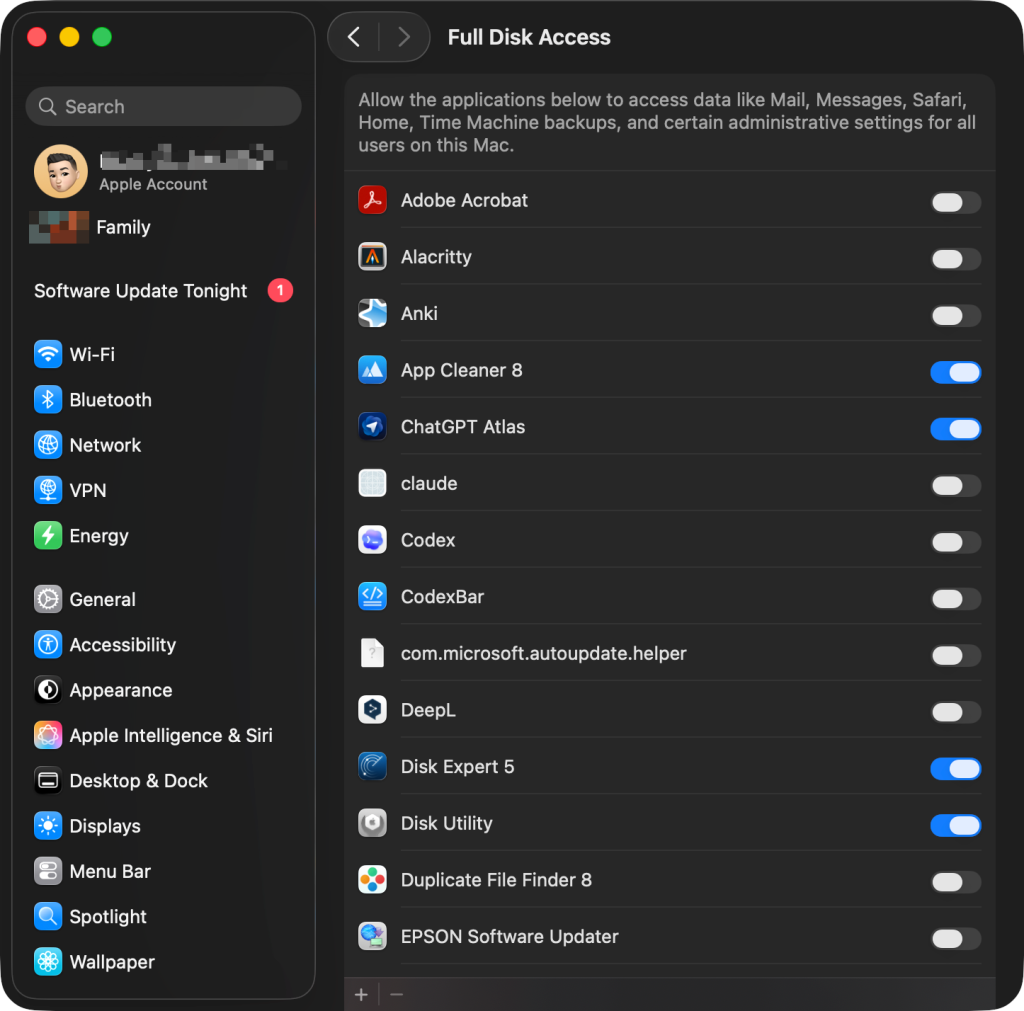
The list of apps allowed to have Full Disk Access in macOS’ system settings
Additionally, audit the permissions granted to applications within macOS System Settings. Review which applications have Full Disk Access, Accessibility, Camera, and Microphone rights, revoking any unnecessary grants. For more details on residual files and helper processes that may remain after a standard uninstall, refer to Nektony’s documentation on what standard uninstall leaves behind.
Adhere to the Principle of Least Privilege
The default stance for any application that does not explicitly require internet access should be “blocked.” Applications such as local image editors, calculators, offline note-taking tools, and most utilities can function perfectly without network connectivity. If a legitimate need for network access arises later, it can be granted at that time. It is far more sustainable to start with a restrictive posture and loosen permissions as needed than to begin permissively and attempt to tighten them later.
This “deny by default” principle, commonly applied in server administration, is equally relevant for personal laptops. In most cases, it incurs no cost. Exceptions are typically obvious and easily managed when they occur.
Conduct Periodic Audits
While live monitoring provides insight into current activity, periodic audits reveal what occurred during unobserved periods. Utilize FireWally’s hourly and daily summaries to scan for unusually high network activity, particularly during idle periods. Examples include a backup application uploading significant data outside of scheduled backup windows, an unfamiliar “helper” process showing sustained traffic, or a recently updated application connecting to new destinations. Any such anomaly warrants further investigation.
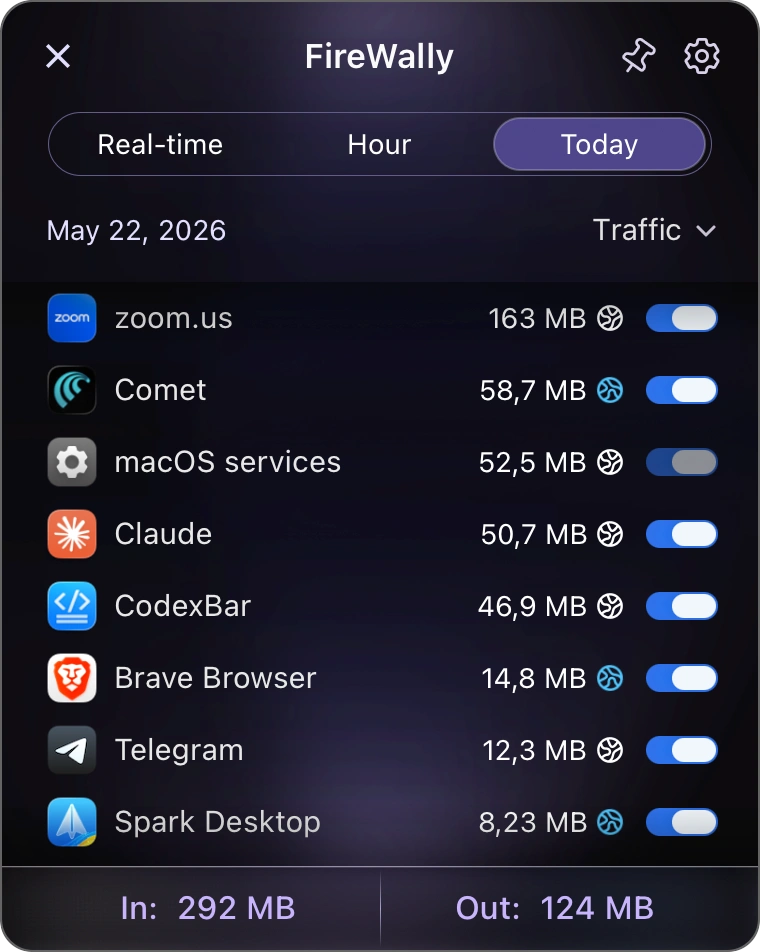
A brief weekly review is generally sufficient. Most weeks will reveal no surprises, which itself is a reassuring outcome. When an unexpected event does occur, you will already possess the context to interpret it effectively.
What You Should Do
- Install a Network Monitoring Tool: Deploy a lightweight, Apple-native network monitoring tool like FireWally (free for macOS 13+) to gain real-time visibility into application outbound connections.
- Audit Installed Applications: Regularly review and uninstall unused applications, browser extensions, and menu bar utilities to minimize your attack surface.
- Review Application Permissions: Check macOS System Settings for apps with Full Disk Access, Accessibility, Camera, and Microphone rights, and revoke any unnecessary permissions.
- Implement Least Privilege: By default, block internet access for applications that do not strictly require it. Grant access only when a legitimate need is identified.
- Conduct Periodic Traffic Audits: Use your monitoring tool’s traffic summaries (e.g., hourly/daily) to review network activity, especially for periods when your Mac was idle, to detect unusual or unexpected connections.
Disclaimer: HackersRadar reports on cybersecurity threats and incidents for informational and awareness purposes only. We do not engage in hacking activities, data exfiltration, or the hosting or distribution of stolen or leaked information. All content is based on publicly available sources.








No Comment! Be the first one.